
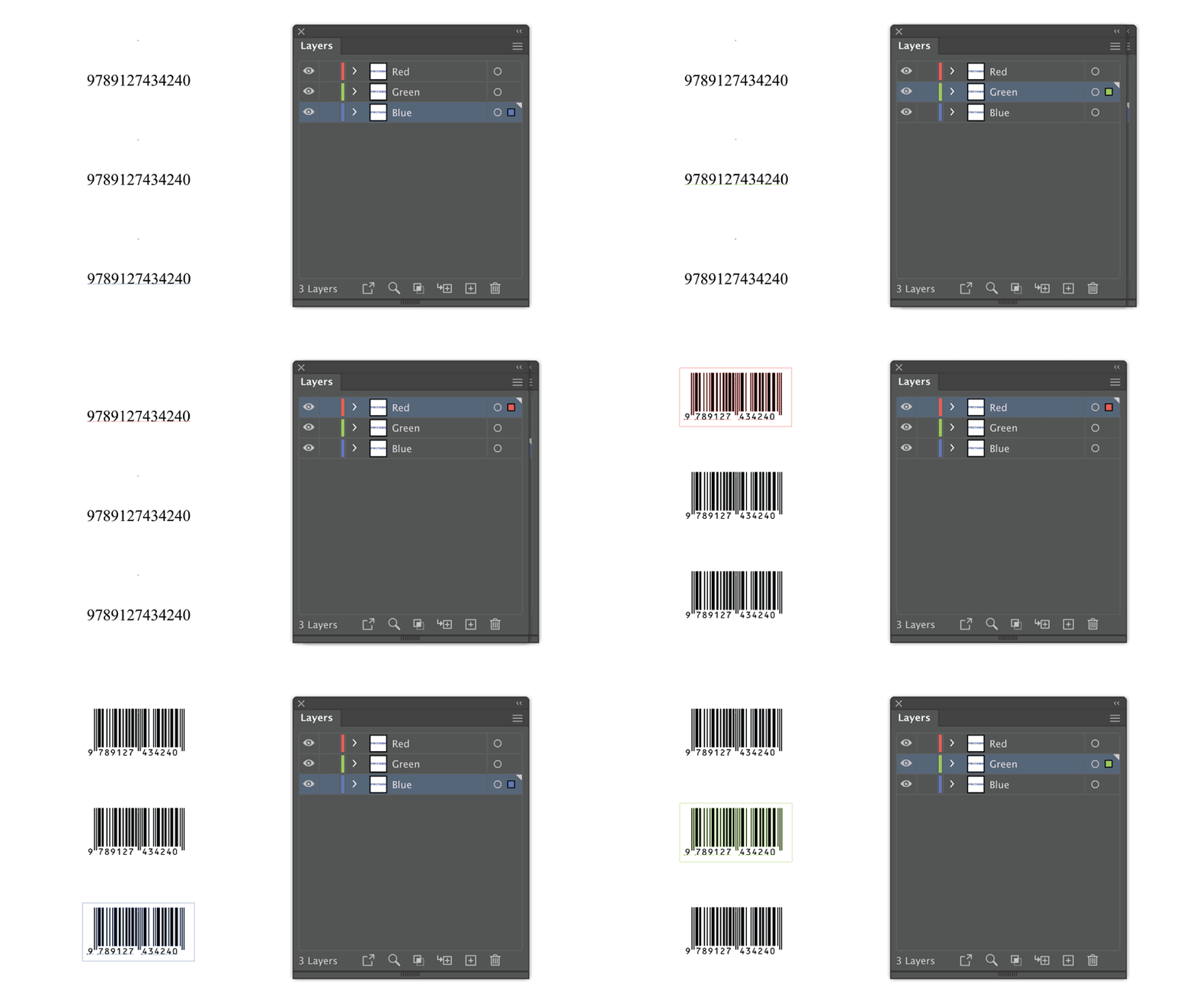
Generate EAN-13 in Adobe Illustrator by replacing all 13-digit text in your open document with a working barcode. The created barcode will follow the placement, size and rotation of your barcode text. Isn’t it smart and easy?
In this blog post, I’ll describe how the EAN-13 barcode script works and cover the known issues.
Download the EAN-13 Barcode script from my script library, where you can also explore my other Illustrator scripts.
Latest Updates for EAN-13 Barcode Script
New (August 2026):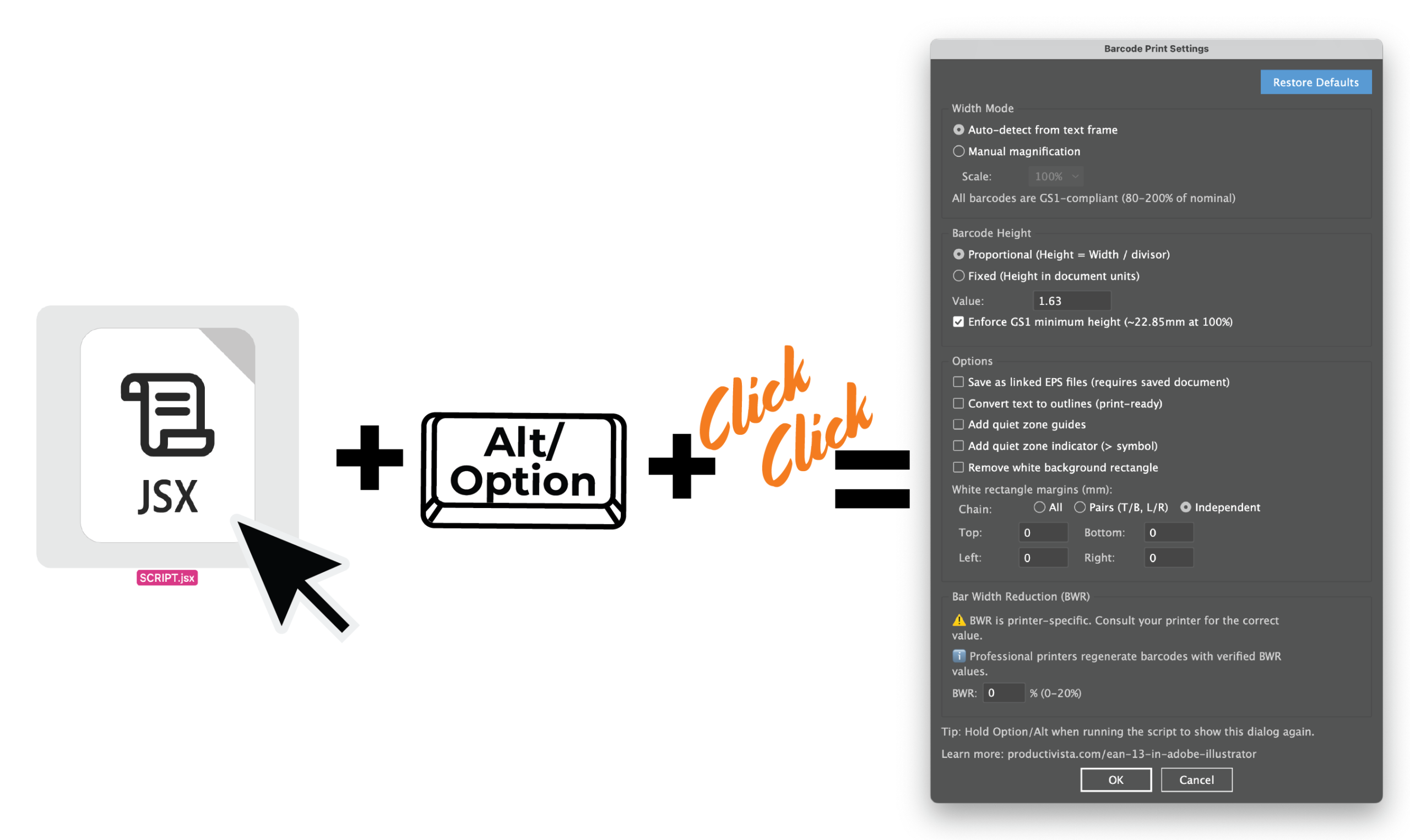
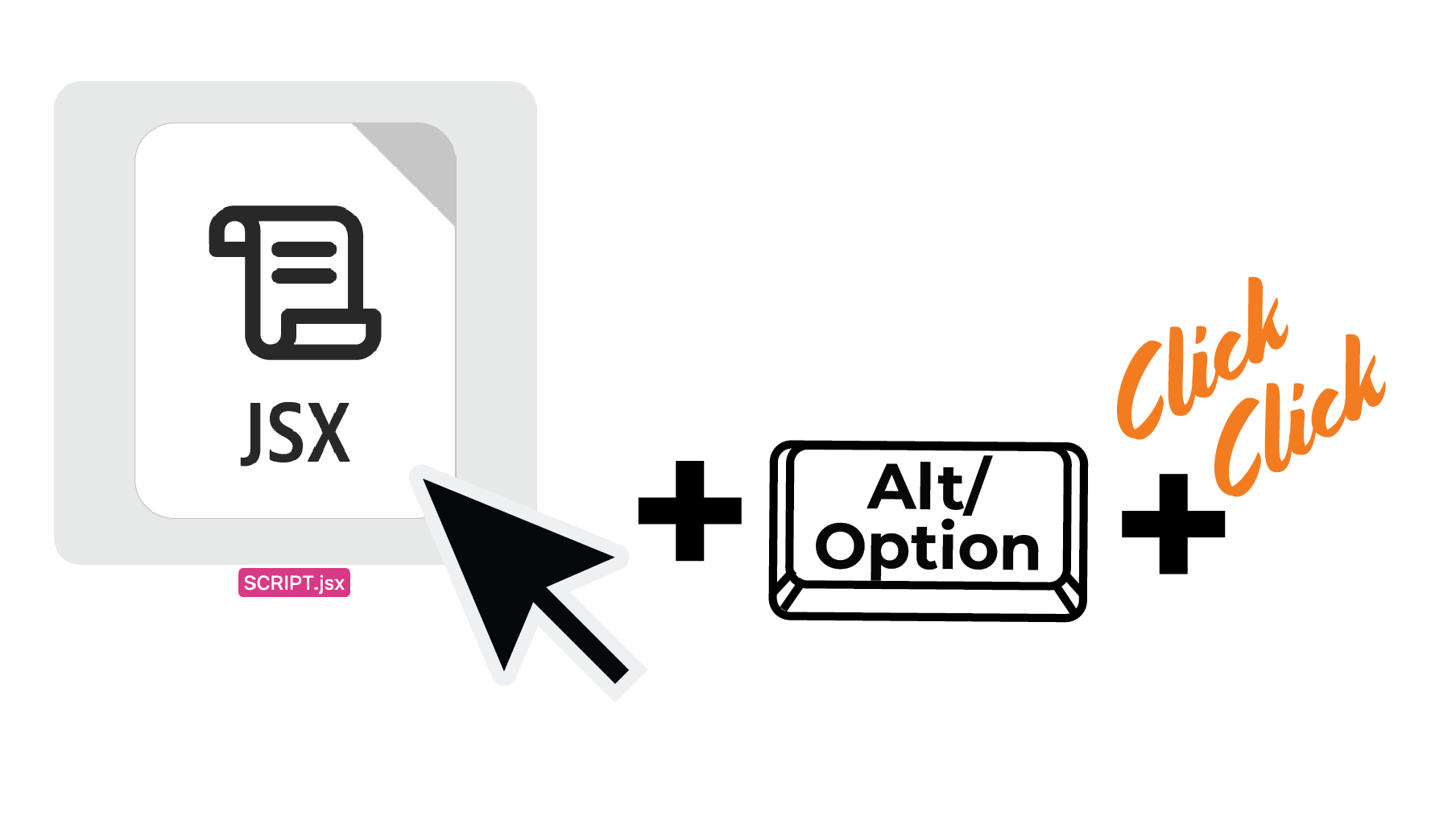
The latest version includes a Barcode Print Settings dialog box. It opens automatically the first time you run the script. To open it again, hold Option on macOS or Alt on Windows while double-clicking EAN13Barcode.jsx. Learn how to change the barcode settings
Previous updates: If you already use this script, download it again to get the earlier fixes and improvements described below.
Calling attention to one issue that this script only worked if 13 digits were placed as point text. In the new update, it should work with both point and area text.
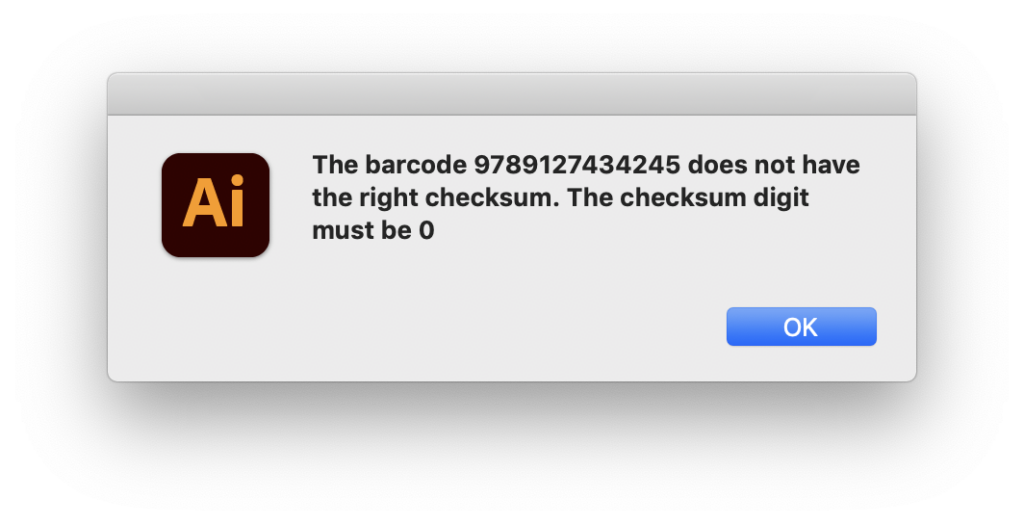
Additionally, I also updated the alert text, when the barcode is not correct. In case the barcode is incorrect, the alert will suggest the correct checksum digit for your barcode. Even so, you should be aware that I still recommend checking the entire barcode number.
Moreover, one of the things that didn’t really suit me was that this script didn’t work if some locked or hidden layers existed. Now, if the layer is locked or hidden, the script will not select these numbers.
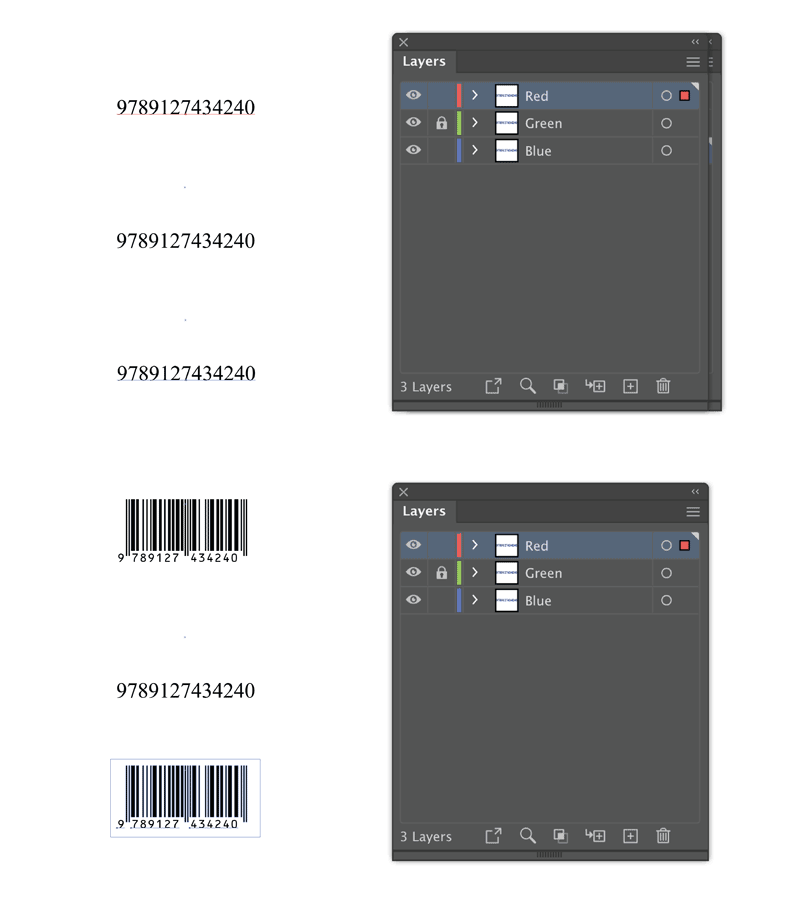
In addition, the entire barcode is created on the same layer on which the corresponding text was placed.
Installation of EAN-13 Barcode Script in Adobe Illustrator:
- Download the ZIP folder
- Extract the JSX file from the ZIP folder.
- Place the EAN13Barcode.jsx file in:
- Win (32 bit): C:\Program Files (x86)\Adobe\Adobe Illustrator [vers.]\Presets\en_GB\Scripts\
- Win (64 bit): C:\Program Files\Adobe\Adobe Illustrator [vers.] (64 Bit)\Presets\en_GB\Scripts\
- Mac OS: /Applications/Adobe Illustrator [vers.]/Presets.localized/en_GB/Scripts
- Restart Illustrator
- The script should be visible now under File > Scripts > EAN13Barcode
NOTE: The OCRB Std font also needs to be installed on your computer. This font is available at Adobe TypeKit.
To make your workflow smarter, it is very convenient to record an action. This method I covered in my previous posts (here and here).
Generate EAN-13 Barcode in Adobe Illustrator with EAN-13 Barcode Script
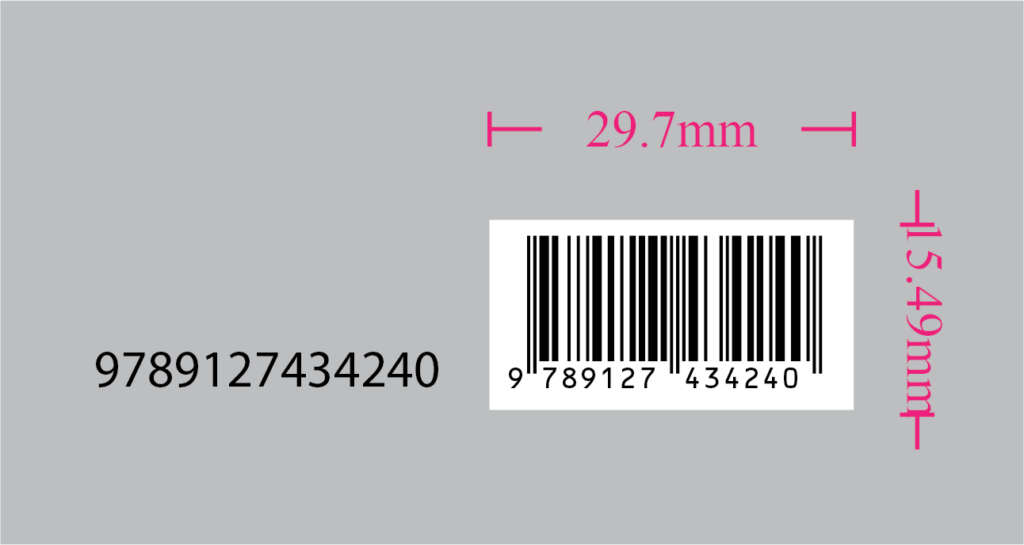
Write 13 digits as text in an open Adobe Illustrator document and run the script. The width of your barcode will depend on the width of your text. The default 12 pt Myriad Pro text will generate an EAN-13 barcode in Adobe Illustrator as a group of around 3 cm.
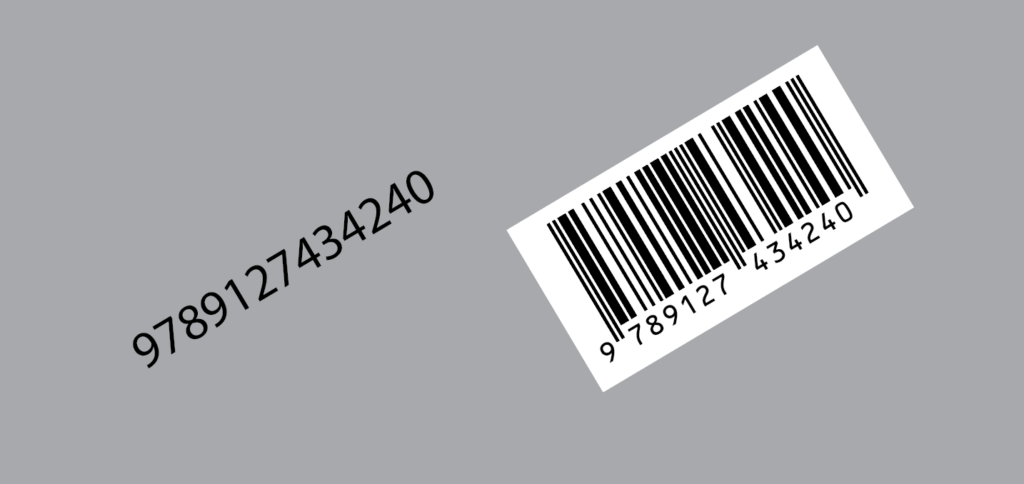
If the text is rotated, then the barcode will also rotate.
Change the EAN-13 Barcode Settings
The updated EAN-13 barcode script includes a settings dialog box. It appears automatically the first time you run the script. After that, the script remembers your choices and generates barcodes without interrupting your workflow.
To reopen the settings dialog box:
- Locate EAN13Barcode.jsx.
- Hold Option on macOS or Alt on Windows.
- While holding the key, double-click the script.
- Change the settings, and then click OK.
You can use the dialog box to auto-detect the barcode width from the original text frame or apply a manual magnification. You can also control the barcode height, enforce the GS1 minimum height, convert the human-readable text to outlines, add quiet-zone guides or an indicator, create linked EPS files, adjust the white background margins, and enter a printer-specific bar width reduction value. Click Restore Defaults to return all options to their original settings.
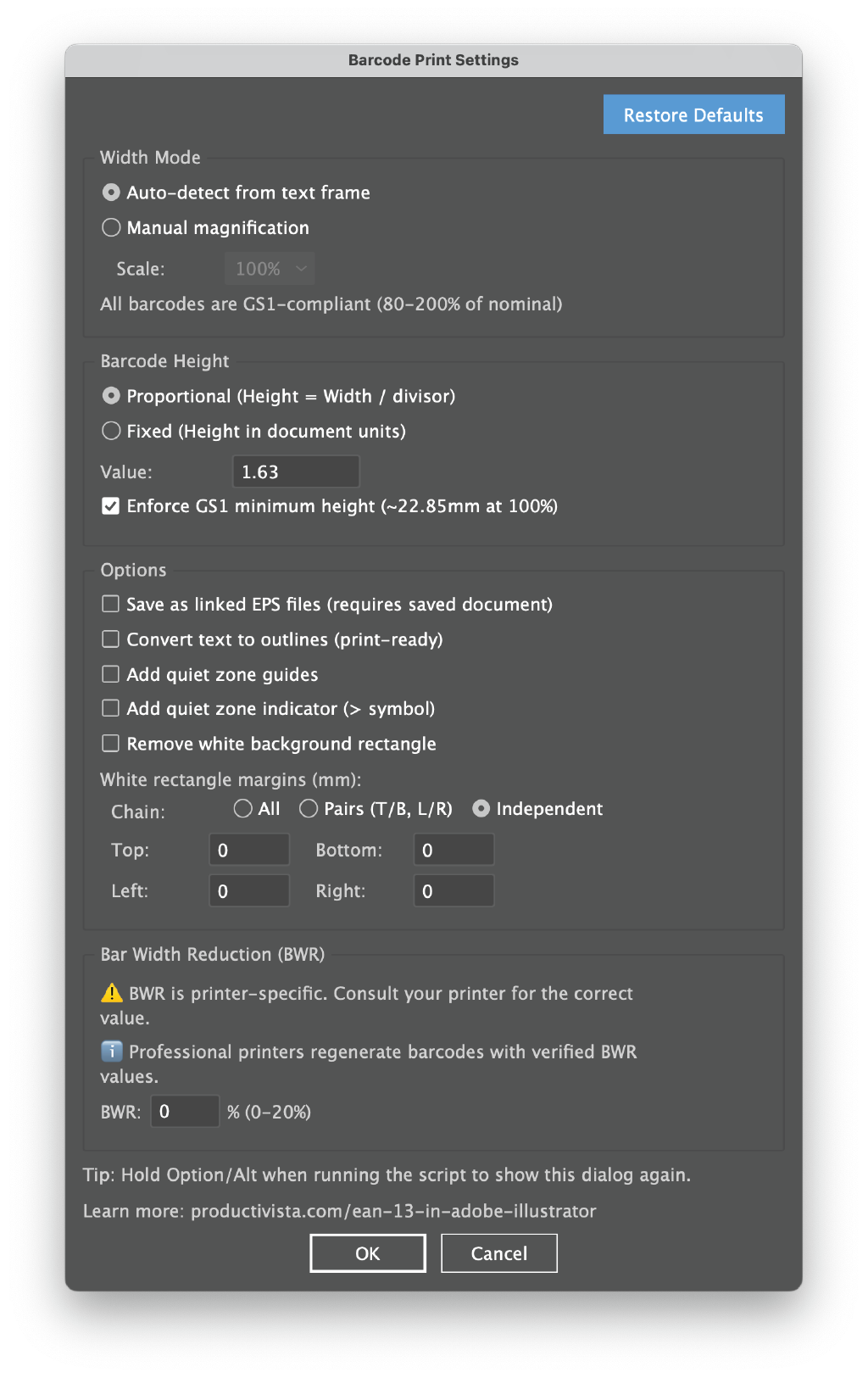
Tip: A normal double-click runs the script with your saved settings. Use an Option-double-click on macOS or an Alt-double-click on Windows only when you need to change them.
Why an EAN-13 Barcode May Still Fail to Scan
Colin Flashman of Colecandoo tested the latest version of the script with several known product numbers. The generated barcodes decoded correctly during his preliminary tests. However, he also shared an important reminder: Correct barcode artwork does not guarantee that the final printed package will scan successfully. An online barcode reader or handheld scanner can confirm that the encoded number can be decoded. It does not measure the print quality of the final package. For production work, always inspect and test the actual printed barcode.
GS1 recommendations for reliable EAN-13 barcodes
Creating a correctly structured EAN-13 barcode is only the first step. GS1 also recommends considering the printing process, scanning environment, symbol size, colors, placement, and print quality. See GS1’s 10 Steps to Barcode Your Product for broader implementation guidance.
-
Before sending your packaging to print
- Check the print quality. Flecks, smearing, broken bars, wrinkling, and other printing defects can reduce readability.
- Use suitable colors. Choose dark bars on a light background and maintain sufficient contrast between the bars and spaces. Avoid red, orange, pink, peach, and similar colors for the bars because many barcode scanners use red light. These colors may appear too light for the scanner to detect reliably.
- Protect the quiet zones. Keep the clear areas on both sides of the barcode free from text, borders, patterns, and other graphics.
- Preserve the barcode dimensions. Avoid stretching, skewing, or warping the barcode. Reducing its height can also impair scanning efficiency.
- Consider the package shape. Positioning is especially important on cans, bottles, and other cylindrical packaging. Keep the barcode away from folds, edges, seams, and areas where the package may distort it. Consult your printer about the most suitable orientation for the printing process.
- Verify the final printed package. Packaging materials, seams, reflections, and the printing process can affect a barcode that worked correctly on screen. A successful scan or online decode is useful, but it is not the same as barcode-quality verification. GS1 recommends measuring the printed symbol with an ISO/IEC-compliant verifier.
Tip: Colin Flashman also recommends obtaining a physical barcode-checking overlay from your local GS1 organization. The overlay can help you inspect dimensions and quiet zones, although it does not replace professional verification of the final printed package.
Thanks to Colin Flashman for testing the script and sharing these practical production tips. For more background and affordable barcode-generation resources, read his article, EAN-13s on a Budget.
Using EAN-13 barcode script in Adobe Illustrator with Data sets and the Batch action
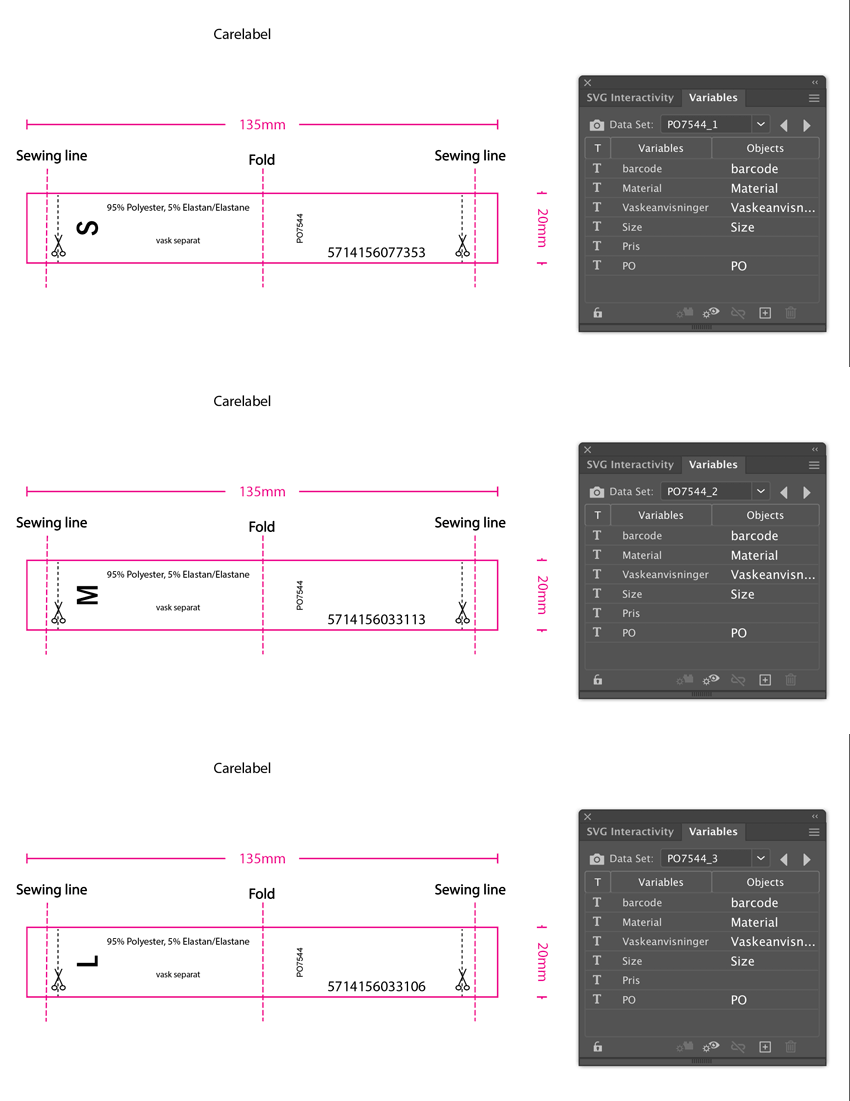
I experienced that several users have asked if it is possible to use EAN 13 barcode script with datasets and batch action. Unfortunately, this is not possible in the current version of the EAN 13 barcode script, but I have plans to improve the script in this direction.
In the meantime, I can suggest the procedure described below.
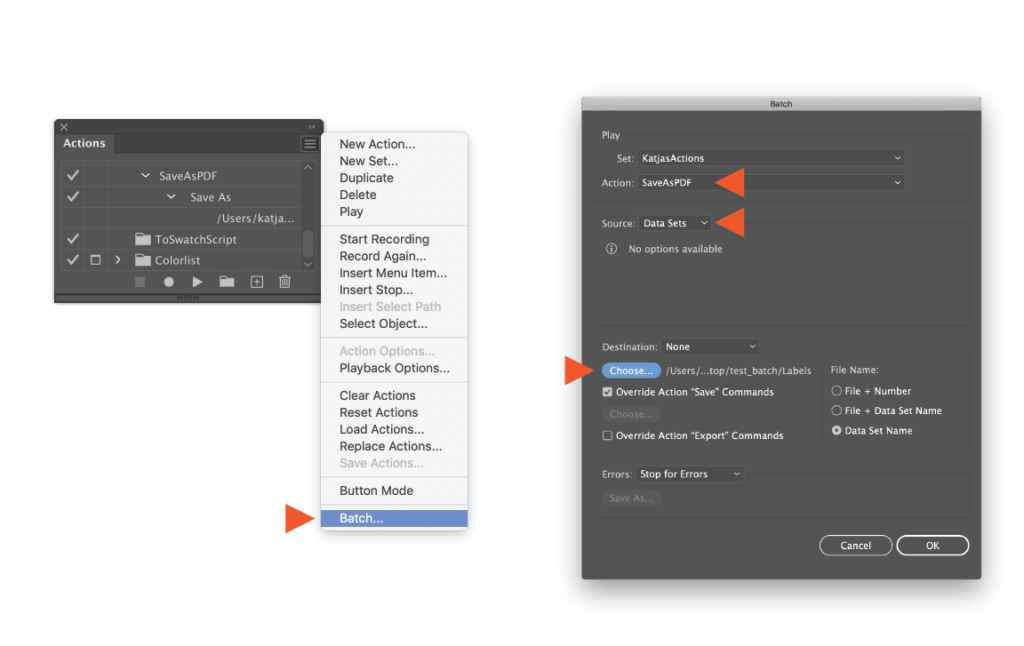
First, run the Batch action, which will save all Data sets as separate documents in a folder.
Afterwards, run the EAN13 barcode script as a new Batch action using the newly created folder.
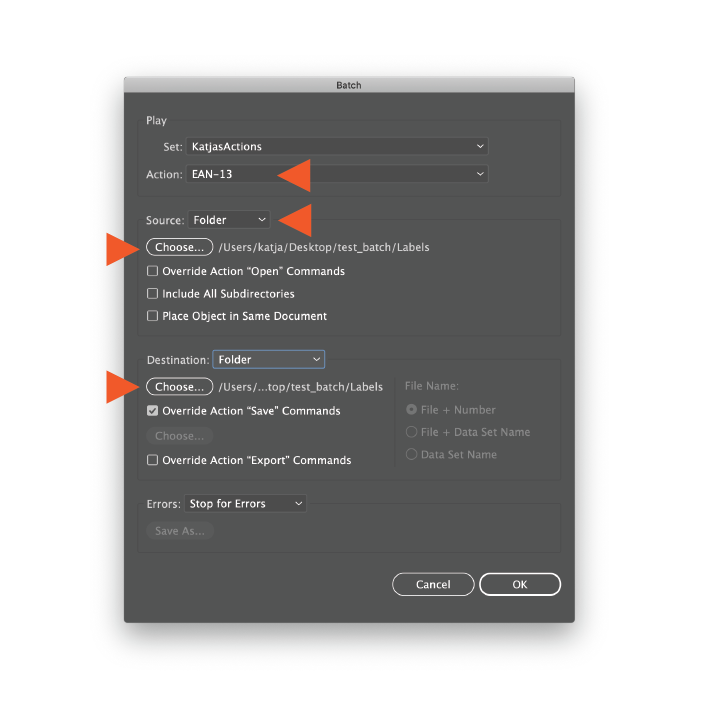
This procedure will save all sets as separated files with the barcodes created.
I hope, that this blog post was helpful and you’ll be glad to generate EAN-13 in Adobe Illustrator with the EAN13 barcode script and don’t be shy to leave a comment.


30 Responses
Thanks,nice work. but i cannot find the latest barcode script. Could you release the newest script?
Do you mean barcode UPC-12?
If so, you can find it here: https://productivista.com/upc-a-barcode-in-adobe-illustrator-using-a-script/
Hi,
I am unable to make action EAN-13 Step “Afterwards, run the EAN13 barcode script as a new Batch action using the newly created folder.”
Please help me to create
Hi,
Have you recorded the action that creates the EAN13 barcode?
I suggested recording this action earlier in the post.
The sript does nothing. I run it from Illustrator and it just does nothing. I can see the option EAN13 under scripts but it does not open any dialog or panel, no error report eirther.
Do you have a 13-digit text line in your document?
If so, ensure there are no other signs or spaces in this line.
Hi, thank you for this script, it works great.
But I need to adjust the height of the barcodes as i have to manually adjust them now.
Thanks
Does it only work in the English version of Illustrator?
I have tried it in the Spanish version and it does not work.
Any possible solution?
Thank you.
I’m not sure if this is related to the application language. Rather, the reason is different. If it’s not tricky, send me an e-mail to katja@productivista.com with the document where the issue appears.
В русской версии тоже работает, большое спасибо за скрипт
Congratulations! That’s really great. Thank you very much for making my job easier. 🙂
Great work, thank you for your script
Please code 128 barcode script give us
I looked into making a Code 128 barcode script. It’s takes time. Right now, I can’t do this project for free because I’m very busy.
If you have more questions, please ask.
Hey!
Katja
Thanks for EAN-13 Bar code script,
Can You Help me in 16- Numeric digit Barcode script
Thank you for your request.
After researching, I’ve found that creating a 16-digit numeric barcode script can be complex and time-consuming. Unfortunately, at the moment, my schedule doesn’t allow me to take on this project for free.
Hi, dont work on the Italian version
Are you sure, that there are no other signs in your 13-digit text line? No space?
very nice script
Hi, is there any way to change the fonts on barcode?
Hi! No,unfortunately that functionality isn’t included in the script.
Hi, I}ve tried with the 13 digit selected, non selected, on a new layer, etc, and it always says
internal script execution error
any sugestion?
Hi Mariano! Just checking—are you using exactly 13 digits, with no spaces or hidden characters? That often causes the script error. If it still doesn’t work, feel free to email me with a sample document attached so I can take a closer look.
Thank you so much, Katja! It’s a very useful script that works great!
Thanks a bunch, Zhanna! So glad the script works great for you 🙂
Hi Katja. I used the script in Illustrator 2026 on Mac for a KDP book and Amazon rejected the cover saying “Barcode is not readable.” Any ideas? If I use a free online barcode generator, then the barcode (Gif) gets accepted by KDP. I saw that the number ‘9’ on your barcode and the freebie one looks different. Online ‘9’ the bottom curves around like the one I just typed here. Your script one has the nine bottom leg nearly go straight down… is it the font that is incorrect and thus not readable? Thanks! Great website.
Thank you for reporting this issue.
Could you please send me an .ai file with this barcode for better troubleshooting.
Thank you.
Thank you for the script, it is very useful. Is it possible to manipulate the height of the barcode lines?
Thank you for your question! First, I’ve just updated the script, so I recommend downloading it again.
And yes, you can adjust the height of the barcode lines. Under Barcode Height, select Fixed (Height in document units) and, importantly, uncheck “Enforce GS1 minimum height.”
That should allow you to set the barcode height as needed.