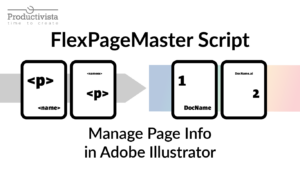
If you have ever wanted a master page style workflow in Adobe Illustrator, PageIndexer gives you a practical way to build one across multiple artboards. It can add page numbers, dates, file names, and repeating labels or artwork. As a result, you can update those elements later without rebuilding the setup manually.
PageIndexer turns selected items into reusable templates on an ‘Index’ layer. From there, it duplicates them across the relevant artboards while keeping the same relative position. As a result, it works well for presentations, packaging files, technical sheets, and other multi-artboard Illustrator documents.
What PageIndexer Does
PageIndexer works with an ‘Index’ layer inside Adobe Illustrator. On the first run, it moves your selected items to that layer and uses them as templates. Those original items remain on the ‘Index’ layer for future updates. After that, the script reads the placeholders in each template, finds its source artboard, and generates matching copies on that artboard and every following artboard while keeping the same relative position.
You can use it for:
Page numbering
Absolute artboard numbering
File name display
Localized date display
Repeating labels, icons, logos, and other static annotations
Groups containing both text and artwork
In practice, that makes it feel a bit like an InDesign master page system for Illustrator, especially when you need repeated footer elements, numbering, labels, or other recurring annotations to stay aligned across a document.
What Is New in the Current Version
The newer PageIndexer versions changed the workflow quite a lot compared with the older blog post and older script builds.
1. Selection-Based Setup
You can now select items directly in the document and run the script immediately.
If the ‘Index’ layer does not exist yet, PageIndexer creates it and moves your selected items there automatically.
However, if the layer already exists, the script unlocks it if needed, moves the new selection into it, and processes both the new and existing template items together.
This is much faster than manually preparing everything in advance.
2. Templates Are Preserved
Your original template items stay on the ‘Index’ layer after the first run. On later runs, PageIndexer uses those same items as the template source and rebuilds the generated copies from them.
PageIndexer also keeps the original placeholder template internally. That means you should not treat the visible text on the ‘Index’ layer as ordinary final text after the first run. If you manually replace that visible text, the script may restore the original placeholder-based content the next time you run it.
3. Safe Re-Run Workflow
PageIndexer now supports update runs properly.
When you run the script again, it removes previously generated items, keeps the original templates, and rebuilds the output. This is especially useful when:
you add more artboards
you move a page number template
you change a date or file name layout
you add a new repeated item to an existing document
In other words, the script is no longer just a one-time generator. It is now designed for ongoing document updates.
4. Static Items Are Supported
One of the improvements is support for static items.
Items without placeholders can now be duplicated as well. For example, you can repeat plain text, shapes, placed artwork, raster items, and many other page items. So if you want a fixed label, a colored badge, a logo, or a graphic marker to repeat across artboards, you can use PageIndexer for that too. One limitation is that transparency masks are not supported.
This is a major reason the script is now better described as a tool for page numbers and annotations, not only placeholder replacement.
5. Absolute Page Number Placeholders
The script still supports relative numbering from the artboard where the template is placed. At the same time, it now also supports absolute artboard numbering.
That means you can choose between:
numbering that starts from the template artboard
numbering that always shows the real artboard number in the document
This is useful when your numbering should begin in the middle of a document, or when you need both local section numbering and true document-wide numbering.
Absolute and relative numbering can be used in the same document, depending on where your template starts.
6. Duplication Mode Can Be Changed On Demand
PageIndexer now supports two duplication modes:
every artboard
every 2nd artboard
To open the Mode dialog, hold `Alt` or `Shift` while double-clicking ‘PageIndexer.jsx’. After you choose a mode, that preference is saved on the template items and reused on later runs until you change it again.
PageIndexer Mode dialog set to duplicate templates to every 2nd artboard.
Optional Placeholder Helper
PageIndexer also includes an optional companion script called PageIndexer_Help. It opens a small palette where you can browse placeholders, build text, and insert it into Illustrator before running the main PageIndexer script. That makes setup faster, especially if you do not want to memorize placeholder codes.
The optional PageIndexer_Help script makes it easier to build placeholder text without memorizing every code.
How the Workflow Works
First Run
Create the text, group, or artwork you want to repeat. (Feel free to use PageIndexer_Help script)
Add placeholders where needed.
Select the items.
Run ‘PageIndexer.jsx’.
PageIndexer creates the ‘Index’ layer if needed, moves the selected items there, and treats them as templates.
Later Updates
You can come back later and:
add more artboards
edit the template text
move the template to a new position
add new template items
Then run the script again. It will clean up the previous generated copies and rebuild them from the preserved templates.
Supported Placeholders
PageIndexer recognizes placeholders inside ‘< >’. Placeholder matching is case-insensitive.
Relative Page Number Placeholders
`<p>`: current page number from the template artboard onward
`<pp>`: current page number with leading zero
`<ps>`: total number of pages from the template artboard to the end
`<pps>`: total number of pages from the template artboard to the end with leading zero
These are useful when the first numbered page does not start on artboard 1.
Absolute Artboard Number Placeholders
‘<ap>’: absolute artboard number
‘<app>’: absolute artboard number with leading zero
‘<aps>’: total number of artboards in the document
‘<apps>’: total number of artboards with leading zero
These are useful when you want true document-wide numbering regardless of where the template is placed.
Document Name Placeholders
‘<name>’: file name without extension
‘<nameex>’: file name with extension
Date Placeholders
‘<wd>’: weekday name
‘<d>’: day number
‘<dd>’: day number with leading zero
‘<m>’: month number
‘<mm>’: month number with leading zero
‘<lm>’: month as Roman numerals
‘<yy>’: two-digit year
‘<yyyy>’: four-digit year
‘<month>’: month name
Updated Date and Time Placeholders
‘<ud>’: updated day number
‘<udd>’: updated day number with leading zero
‘<um>’: updated month number
‘<umm>’: updated month number with leading zero
‘<ulm>’: updated month as Roman numerals
‘<uyy>’: updated two-digit year
‘<uyyyy>’: updated four-digit year
‘<umonth>’: updated month name
‘<uwd>’: updated weekday name
‘<utime>’: updated time in ‘HH:MM’ format
‘<utimestamp>’: updated time in ‘HH:MM:SS’ format
PageIndexer can combine fixed creation dates with updated date and time placeholders across multiple artboards.
Language Support for Dates
Month names and weekday names are localized based on the language setting of the text frame paragraph in Illustrator. Currently, the script includes support for more than 20 European languages, including English, Danish, Swedish, German, French, Italian, Spanish, Polish, Russian, Ukrainian, and others.
If a language is not supported, the script falls back to English.
Groups and Complex Layouts
PageIndexer works with both single text frames and groups.
For example, you can build a footer, caption block, or annotation set as a group that contains:
one or more text frames with placeholders
static text
shapes
icons
other artwork
The script preserves the layout and duplicates the group in the same relative position across the following artboards.
Positioning Across Different Artboards
The script keeps the relative position of each template item based on its placement on the source artboard. It can also align items from corners and center positions. As a result, the layout stays more consistent even when artboards vary in size.
This is one of the reasons PageIndexer is practical in real production files rather than only in perfectly uniform layouts.
Recommended Uses
PageIndexer is especially helpful when you need to repeat information such as:
page numbers in client presentations
file names in review PDFs
dates on technical sheets
recurring callouts or badges
repeated footer systems across multiple artboards
It is also useful when Illustrator is being used for multi-artboard documents that behave a bit like multi-page layouts.
Installation
Download the script.
Place `PageIndexer.jsx` in Illustrator’s Scripts folder, or run it once through `File > Scripts > Other Script…`.
Restart Illustrator if you installed it in the Scripts folder.
Keep your template items fully on an artboard so Illustrator can detect the correct source artboard reliably.
Use the ‘Index’ layer as your template area and let the script manage the generated copies.
If you want numbering to start later in the document, place the template on that artboard and use the relative placeholders.
If you want true artboard numbers, use the absolute placeholders.
Final Thoughts
PageIndexer started as a way to automate page numbers, file names, and dates in Adobe Illustrator, but it has grown into a more practical production tool for reusable annotations and repeated layout elements across artboards.
The biggest improvement is that the workflow is now update-friendly. You can build templates once, keep them, revise them, add artboards later, and regenerate everything without rebuilding the document structure each time.
If you work with multi-artboard Illustrator files and want a faster, cleaner way to handle repeated information, PageIndexer can save a lot of manual work.
Get the Script
If you want to try it, download ‘PageIndexer.jsx’ and install it in Illustrator’s Scripts folder, or run it once through ‘File > Scripts > Other Script…’. If you want a faster way to build placeholder text, you can install ‘PageIndexer_Help.jsx’ as well.
You can find the script here, along with my other scripts and workflow solutions.
Related Reading
If you want to build a more complete reusable document system around PageIndexer, these related articles may also help:
If you already use templates in Illustrator, PageIndexer can fit naturally into that workflow by handling repeated numbering, dates, file names, and annotation elements across multiple artboards.